

[Apr 10, 2024] 100% Real & Accurate UiPath-ADAv1 Questions with Free and Fast Updates
Self-Study Guide for Becoming an UiPath Automation Developer Associate v1 Exam Expert
NEW QUESTION # 122
Which activity is best suited for a developer to create a process that finds images on a website and stores them in a local folder, accounting for the need to potentially search for an image repeatedly due to errors on the website?
- A. Delay
- B. Get Attribute
- C. Retry Scope
- D. Check App State
Answer: C
Explanation:
For a process that involves finding images on a website and storing them, especially when accounting for potential errors on the website that may require repeated attempts, the "Retry Scope" activity is the best choice. This activity allows for the specification of a number of retries and a condition that must be met for the retry to occur. If the image is not found or if there is an error during the process, the "Retry Scope" will attempt the operation again as specified by the developer.
References:
UiPath Activities Guide: Retry Scope
NEW QUESTION # 123
How does UiPath Integration Service benefit automation developers?
- A. By enabling developers to create custom UI elements for applications without using APIs.
- B. By offering a comprehensive, unified platform dedicated solely to UI automation, enabling seamless integration with third-party applications.
- C. By substituting the requirement for API automation with UI automation capabilities, delivering a more manageable and user-friendly approach, allowing users to streamline their processes efficiently and effectively facilitating a more rapid integration process.
- D. By standardizing authorization and authentication, managing API connections, and enabling faster integration into SaaS platforms.
Answer: D
Explanation:
The UiPath Integration Service is a new feature that seamlessly combines world-class UI and API automation, allowing both capabilities to be centrally accessed within the same integration design environment12. This empowers developers to flexibly capture all their automation opportunities, even allowing them to deploy both types of integrations within a single automation12. The UiPath Integration Service also provides the following benefits for automation developers12:
By standardizing authorization and authentication, it simplifies the security protocols for connecting to different systems and applications, such as Salesforce, SAP, or Google G Suite2.
By managing API connections, it enables developers to create, modify, reuse, and share connections to multiple systems using pre-built connectors or custom connectors2.
By enabling faster integration into SaaS platforms, it allows developers to leverage server-side event triggers to start automations based on data updates, insertions, or deletions in external applications2.
References:
Introducing UiPath Integration Service | UiPath.
New UiPath Integration Service | UiPath.
NEW QUESTION # 124
The "DataTable_Users" variable of the data table type contains the following columns: "First Name". "Last Name", "Date of Birth", and "Username".
How can the argument "in_UserName" from "BuildUserID.xaml" be mapped to the appropriate values in
"Main.xaml"?
- A. DataTable_Users("Username").ToString
- B. UserID
- C. Usernames
- D. CurrentRow("Username").ToString
Answer: D
Explanation:
The argument "in_UserName" from "BuildUserID.xaml" should be mapped to the "Username" column of the current row in the "DataTable_Users" data table. The correct expression for accessing this value is CurrentRow("Username").ToString, which converts the value in the "Username" column of the current row to a string suitable for the argument.
References:
UiPath Studio Guide: The Variables Panel
NEW QUESTION # 125
In the Output property of all Get Mail activities, what is the supported variable type?
- A. MailMessage
- B. String
- C. List<MailMessage>
- D. List<String>
Answer: C
Explanation:
Explanation
In the Output property of all Get Mail activities, the supported variable type is List<MailMessage>. The Output property is the property that stores the result of the activity in a variable. The Get Mail activities are the activities that retrieve email messages from various mail servers, such as POP3, IMAP, Outlook, or Exchange.
The result of the Get Mail activities is a collection of email messages that match the specified criteria, such as the mail folder, the filter, or the top count. The collection of email messages is represented by the List<MailMessage> type, which is a generic list that contains MailMessage objects. A MailMessage object is a class that represents an email message, with properties such as Subject, Body, Attachments, From, To, etc1.
For example, if the Get Mail activity is used to retrieve the email messages from the Inbox folder of an Outlook account, the Output property can be configured with a variable of type List<MailMessage>, such as mailList. The mailList variable will store the email messages as a list of MailMessage objects, which can then be accessed or manipulated using other activities, such as For Each, Save Attachments, or Send Mail2.
References: MailMessage Class and Get Outlook Mail Messages from UiPath documentation
NEW QUESTION # 126
A developer is building an automation which types text into a text file. The Activity Project Settings for UI Automation Modern activities are set as follows:

What is the behavior of the Type Into activity when executing the workflow?
- A. The activity will use only properties set in Activity Project Settings.
- B. The activity will remove Multi Line in Run mode and a Single Line in Debug mode.
- C. The activity will remove a Single Line in Run mode and in Debug mode.
- D. The activity will remove a Single Line in Run mode and Multi Line in Debug mode.
Answer: D
Explanation:
The Type Into activity is used to type text into a UI element. The activity has different properties that can be configured to control the input method, the delay between keystrokes, the cursor position, and the text formatting. The Activity Project Settings for UI Automation Modern activities allow you to set the default values for these properties at the project level. However, you can also override these values at the activity level by using the Properties panel. In this case, the Activity Project Settings are set to remove a Single Line in Run mode and Multi Line in Debug mode. This means that when the workflow is executed, the Type Into activity will delete any existing text in the UI element before typing the new text. If the workflow is run in Run mode, only one line of text will be deleted. If the workflow is run in Debug mode, all lines of text will be deleted. (UiPath Studio documentation1) References:
1: Configuring Activity Project Settings - UiPath Studio.
NEW QUESTION # 127
Starting with UiPath Studio version 2022.10, what happens to dependencies that lack Windows compatibility when they are converted in a project?
- A. They are automatically resolved.
- B. They are marked as unresolved.
- C. They are replaced with compatible alternatives.
- D. They are removed from the project.
Answer: B
Explanation:
Starting with UiPath Studio version 2022.10, the default project type is Windows, which uses .NET 6 or .NET
5 with Windows support1. If a project contains dependencies that lack Windows compatibility, such as custom activities or libraries, they are marked as unresolved when the project is converted to Windows2. The developer needs to manually resolve them by finding compatible alternatives or updating the code3.
References:
Studio - Hardware and Software Requirements documentation, Project Compatibility section Getting error: No compatible version with windows projects forum post, Question by @RajeshT Uipath New Version Features - 2022.10.3 blog post, New Default Project Compatibility = Windows section
NEW QUESTION # 128
How would you define a linear process in UiPath?
- A. The steps of the process are performed multiple times, but each time different data items are used.
- B. The steps of the process refer to the execution of steps in a sequential manner, where each subsequent step depends on the successful completion of the previous step.
- C. The process steps are performed only once. If the need is to process additional data, then the automation must execute again.
- D. The steps of the process repeat multiple times over different data items. However, the automation design is such that each repeatable part processes independently.
Answer: C
Explanation:
A linear process in UiPath is a type of automation process that consists of a series of steps that are executed only once for a single data item or transaction. A linear process does not have any loops or iterations, and it does not depend on any external factors or conditions. A linear process is suitable for scenarios where the automation process is simple, straightforward, and does not require any dynamic branching or decision making. (UiPath Automation Developer study guide) References:
Framework for linear process or single transaction
How to modify ReFramework to Linear Process
Difference between Linear process and Transactional process
NEW QUESTION # 129
A developer created a process that performs the following tasks
1 Prompts the user for an input company name
2. Opens a browser and searches for the company name
3. Scrapes the search results
4. Writes the results to a Microsoft Excel file
What is the total number of steps that require human interaction?
- A. Two
- B. Four
- C. One
- D. Three
Answer: C
Explanation:
Explanation
The only step that requires human interaction is the first one, where the user is prompted for an input company name. The rest of the steps are performed by the automation process without any human intervention.
NEW QUESTION # 130
The following table is stored in a variable called "dt".
What will the value of the qty variable be after executing the Assign activity?
- A. 0
- B. 1
- C. 2
- D. null
Answer: C
Explanation:
Explanation
The Assign activity is used to assign a value to a variable. In this case, the variable is "qty". The value of the variable will be 80 after executing the Assign activity because the expression in the Assign activity is
"dt.AsEnumerable().Where(Function(x) x("Item").ToString.Equals("mango")).Select(Function(y) y("Quantity")).ToString". This expression is filtering the data table "dt" for rows where the "Item" column is equal to "mango" and then selecting the "Quantity" column from those rows. Since there is only one row in the data table where "Item" is equal to "mango", the value of the "Quantity" column in that row is 80. (UiPath Studio documentation) References:
[Assign - UiPath Activities].
NEW QUESTION # 131
When should the Show Elements button be used in the Computer Vision wizard?
- A. Highlighting all Ul elements that have been identified by the Computer Vision analysis.
- B. Filtering out specific UI elements from being processed by the Computer Vision engine.
- C. Displaying a list of all available UI elements and their properties.
- D. Activating a real-time view of the target app's UI during automation.
Answer: A
Explanation:
Explanation
The Show Elements button in the Computer Vision wizard is used to toggle the highlighting of all UI elements that have been detected by the Computer Vision engine on the target application. This helps to visualize the accuracy and scope of the UI element recognition and to select the desired UI element for automation. (UiPath Automation Developer study guide) References:
Computer Vision
Computer Vision Wizard
NEW QUESTION # 132
What variable type should the developer use to store the monetary amount read from a single cell in an Excel file, before inputting it into a field in a web application for the automation process?
- A. DataRow
- B. List
- C. Object
- D. Double
Answer: D
Explanation:
Explanation
The variable type that the developer should use to store the monetary amount read from a single cell in an Excel file, before inputting it into a field in a web application for the automation process, is Double. This is because the Double variable type can store decimal numbers with high precision and a large range of values.
This is suitable for storing monetary amounts that may have fractions or large digits. The Double variable type can be used with the Read Cell activity to read the value from the Excel file, and with the Type Into activity to input the value into the web application. The developer can also use the Format Value activity to format the Double variable as a currency, if needed.
References:
Types of Variables - UiPath Studio
Read Cell - UiPath Activities
Type Into - UiPath Activities
Format Value - UiPath Activities
NEW QUESTION # 133
A developer wants to map the arguments that pass data to and from GenerateUserlD.xaml to the appropriate values in Main.xaml. The dt_Users datatable variable contains the columns First Name: Last Name Date of Birth and Username.
Instructions: From the Value drop-down lists shown in the following exhibit, select the correct variable that corresponds to each argument.

Answer:
Explanation:
Explanation
The values to select from the drop-down lists for the in_Username and Out_UserID arguments are:
in_Username: CurrentRow("Username").ToString
Out_UserID: UserID
These values will ensure that the in_Username argument receives the value of the Username column from the current row of the dt_Users datatable, and the Out_UserID argument returns the value of the UserID variable that is generated by the GenerateUserID.xaml workflow.
NEW QUESTION # 134
What is the purpose of Breakpoints when debugging a project in UiPath Studio?
- A. To measure the execution time of each activity in the workflow.
- B. To automatically restart the debugging process when an error is encountered.
- C. To purposely pause the debugging process on an activity which may trigger execution issues.
- D. To export debugging results in different formats.
Answer: C
Explanation:
Breakpoints are used in debugging to pause the execution of the project at specific activities, which may potentially cause execution issues, making option A correct. This allows developers to inspect the state of the application at that point, aiding in the identification and resolution of issues. Options B, C, and D do not accurately describe the purpose of breakpoints in the debugging process.
References:
UiPath Documentation: Debugging
NEW QUESTION # 135
Which of the following statements is true about the existing UiPath Studio installation packages?
- A. The Attended Robot installation package installs only UiPath Studio, and Robot.
- B. The Attended Robot installation package installs only the UiPath Robot.
- C. The Automation Developer installation package installs only UiPath Studio, Assistant, and Robot.
- D. The Unattended Robot installation package installs only UiPath Studio, Assistant, and Robot.
Answer: C
Explanation:
Explanation
The Automation Developer installation package is a standalone installer that allows you to install UiPath Studio, Assistant, and Robot on your computer. This package is suitable for developers who want to create and test automation projects in UiPath Studio. (UiPath Studio - Installation Options - UiPath Academy) References:
Studio - Installation Options - UiPath Documentation Portal
[UiPath Studio - Installation Options - UiPath Academy]
[UiPath Studio - Installation Guide - UiPath Academy]
NEW QUESTION # 136
Following UiPath best practices, which project structure is best-suited for complex processes in UiPath Studio?
- A. Flowchart
- B. Global Exception Handler
- C. Sequence
- D. State Machine
Answer: D
Explanation:
According to the UiPath documentation and best practices, the State Machine project structure is best-suited for complex processes that involve multiple states and transitions between them12. A State Machine workflow can model the behavior of a system in terms of states, such as "Init", "Get Transaction Data", "Process Transaction", and "End Process", and transitions, such as "Success", "Business Rule Exception", or "System Error". A State Machine workflow can also have entry and exit actions for each state, which are activities that execute when the system enters or exits the state, respectively1.
A State Machine project structure has several advantages over other project structures, such as Sequence, Flowchart, or Global Exception Handler, for complex processes2:
It can handle complex logic and branching conditions more easily and clearly than a Sequence or a Flowchart, which can become cluttered and hard to maintain for large processes2.
It can handle exceptions and errors more efficiently and consistently than a Global Exception Handler, which is a separate workflow that handles all exceptions in a project. A State Machine can have dedicated states and transitions for handling different types of exceptions, such as business rule exceptions or system errors, and can also use retry mechanisms or recovery actions2.
It can improve the readability, modularity, and reusability of the workflows, by breaking down the process into smaller and coherent states that can be invoked from the main workflow. This also facilitates collaboration and testing among developers2.
Therefore, a State Machine project structure is best-suited for complex processes that involve multiple states and transitions between them.
References:
State Machine Workflows - Campus Management Corp..
UiPath Best Practices - Studio - UiPath Community Forum.
NEW QUESTION # 137
Data from an Excel file is read into a data table named "dtEmployee", as displayed in the following graphic:
A developer needs to filter the data table to obtain all rows representing employees from the Finance and IT departments with a Salary under 30,000. Which expression yields the desired outcomes?
- A. dtEmployee.Select("[Department]='IT' OR [Department]='Finance' OR [Salary] < 30000")
- B. dtEmployee.Select("([Department]='IT' OR [Department]='Finance') AND [Salary] < 30000")
- C. dtEmployee.Select("[Department]='IT' OR [Department]='Finance' AND [Salary] < 30000")
- D. dtEmployee.Select("([Department]='IT' AND [Department]='Finance') AND [Salary] < 30000")
Answer: B
Explanation:
This expression filters the data table to obtain all rows representing employees from the Finance and IT departments with a Salary under 30,000. The expression uses the Select method of the data table, which returns an array of data rows that match a specified condition. The condition is written as a string that follows the syntax and rules of the DataColumn.Expression property. The condition uses parentheses to group the logical operators OR and AND, which have different precedence levels. The OR operator returns true if either operand is true, while the AND operator returns true only if both operands are true. The condition also uses single quotes to enclose the string values of the Department column, and the less than operator to compare the numeric values of the Salary column. (UiPath Studio documentation1) References:
1: DataTable.Select Method (System.Data) | Microsoft Docs.
NEW QUESTION # 138
Review the following graphics:

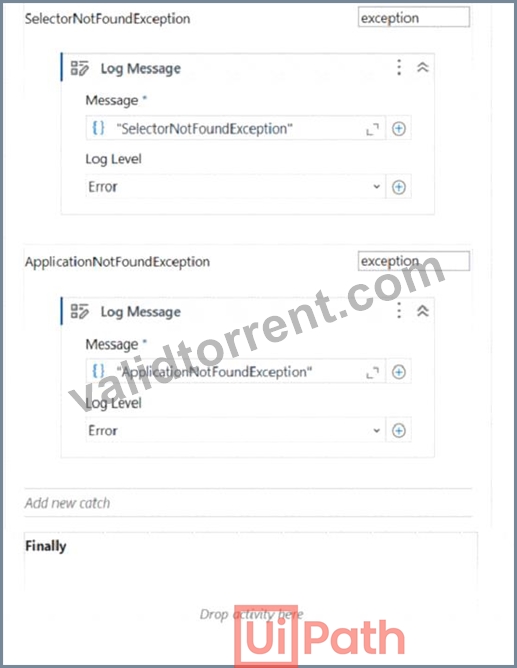
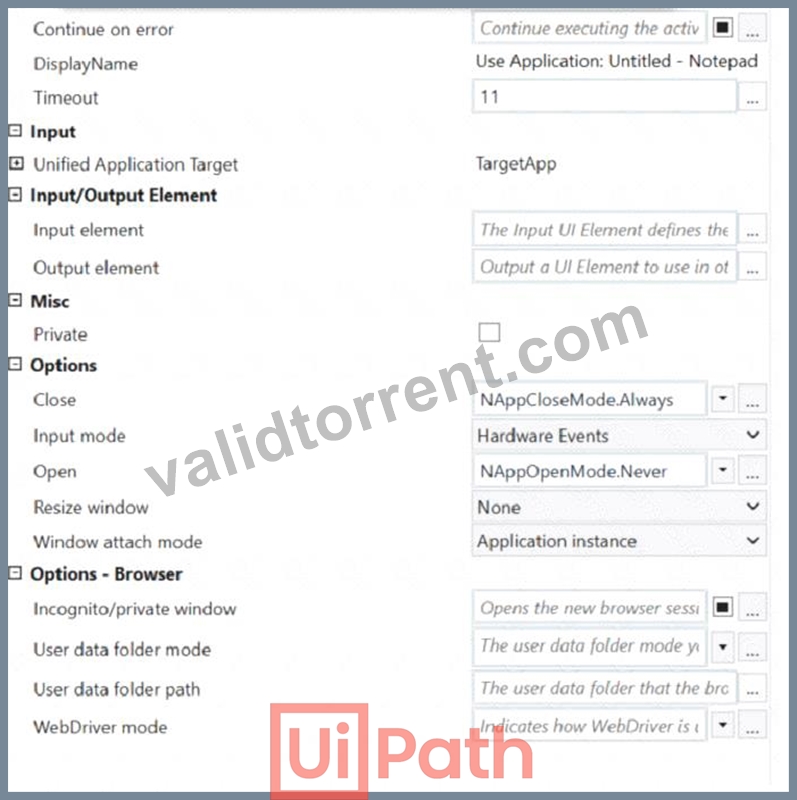

If the automation is executed and Notepad.exe is not running, which Log Message text value is contained in the Output panel?
- A. Try
- B. Exception
- C. ApplicationNotFoundException
- D. SelectorNotFoundException
Answer: D
Explanation:
Based on the image you sent, the automation process consists of four steps: opening Notepad.exe, typing some text, saving the file, and closing Notepad.exe. Each step has a Log Message activity that writes a text value to the Output panel. If Notepad.exe is not running, the first step will fail and throw an exception. The exception type is SelectorNotFoundException, because the Open Application activity cannot find the selector for Notepad.exe1. Therefore, the Log Message text value that is contained in the Output panel is
"SelectorNotFoundException", which is option D.
References: Open Application documentation.
NEW QUESTION # 139
How would you define a linear process in UiPath?
The process steps are performed only once. If the need is to process additional data, then the automation must execute again.
- A. The steps of the process are performed multiple times, but each time different data items are used.
- B. The steps of the process refer to the execution of steps in a sequential manner, where each subsequent step depends on the successful completion of the previous step.
- C. The steps of the process repeat multiple times over different data items. However, the automation design is such that each repeatable part processes independently.
Answer: B
Explanation:
Explanation
A linear process in UiPath is a type of process that follows a sequential order of execution, where each step depends on the previous one1. A linear process does not have any loops, branches, or parallel activities that can alter the flow of execution2. A linear process is suitable for simple and straightforward tasks that do not require any decision making or iteration3.
References: Difference between Linear process and Transactional process, How to Use Enhanced REFramework to Implement UiPath Projects, How to modify ReFramework to Linear Process.
NEW QUESTION # 140
Consider testing a workflow that computes the sum of two numbers having the data driven test data from the Excel file below:
Expanding the functionality of the workflow to compute the sum of three numbers, the data needs to be updated as well to accommodate the new scenario:
What are steps to do that?
- A. Click Right on the Test Case and select Update Test Data.
- B. Click Right on the Test Case and select Remove Test Data.
- C. Click Right on the Test Case and select Add Test Data.
- D. Click Right on the Test Case and select Refresh Test Data.
Answer: A
Explanation:
Explanation
To update the data to accommodate the new scenario, you need to modify the Excel file that contains the test data and then refresh the test case to reflect the changes. The steps are as follows:
Open the Excel file that has the test data for the workflow. It should have four columns: Number1, Number2, Sum, and Result.
Add a new column after Number2 and name it Number3. This column will store the third number for the sum operation.
Update the existing rows in the Excel file to include a value for Number3 and adjust the value of Sum accordingly. For example, if Number1 is 1, Number2 is 2, and Number3 is 3, then Sum should be 6.
Save and close the Excel file.
In UiPath Studio, right click on the test case that uses the Excel file as the test data source and select Update Test Data. This will open a window where you can edit the test data settings.
In the Update Test Data window, make sure that the Excel file path is correct and that the sheet name is selected. You can also change the name and description of the test data if you want.
Click OK to save the changes and close the window.
Right click on the test case again and select Refresh Test Data. This will reload the test data from the Excel file and update the test case accordingly.
You have successfully updated the test data to compute the sum of three numbers instead of two. You can now run or debug your test case with data variations1.
NEW QUESTION # 141
A developer indicated a Ul element for a Get Text activity. The automatically-generated selector is shown below.
<html app=, chrome.exe, title='temperature now1 />
<webctrl tag='table' class=, ui_side_menu' innertext-19°C 66°F' />
Based on best practices, which selector attribute is unreliable?
- A. tag
- B. title
- C. class
- D. innertext
Answer: D
Explanation:
Explanation
Based on best practices, the selector attribute that is unreliable is innertext. The innertext attribute is the text content of a UI element, such as a table, a button, or a label. The innertext attribute is unreliable because it can change dynamically depending on the data or the state of the UI element. For example, the innertext attribute of a table can change when the table is updated with new values, or the innertext attribute of a button can change when the button is clicked or disabled. Using the innertext attribute in a selector can cause the selector to fail or to identify the wrong UI element if the text content is different from the expected value1. Therefore, the innertext attribute should be avoided or replaced with a more reliable attribute, such as tag, class, or title.
The tag attribute is the name of the HTML element, such as table, button, or input. The tag attribute is reliable because it does not change unless the UI element is replaced with a different element. The class attribute is the name of the CSS class that defines the style or the behavior of the UI element, such as ui_side_menu, btn-primary, or form-control. The class attribute is reliable because it does not change unless the UI element is styled or modified differently. The title attribute is the text that appears when the mouse pointer is hovered over the UI element, such as temperature now, submit, or username. The title attribute is reliable because it does not change unless the UI element is renamed or removed2.
References: Selectors with Wildcards and UiPath Selectors from UiPath documentation and forum.
NEW QUESTION # 142
......
UiPath-ADAv1 Study Guide Realistic Verified UiPath-ADAv1 Dumps: https://www.validtorrent.com/UiPath-ADAv1-valid-exam-torrent.html
UiPath-ADAv1 Questions & Practice Test are Available On-Demand: https://drive.google.com/open?id=1uKQ1EpgjHDtnVFZt13092b7zd084CKAq